
sqlui-native

sqlui-native is a cross-platform desktop SQL/NoSQL database client and REST API client built with Tauri v2 and a Node.js sidecar. It supports MySQL, MariaDB, Microsoft SQL Server, PostgreSQL, SQLite, Cassandra, MongoDB, Redis, Azure CosmosDB, Azure Table Storage, Salesforce (SFDC), GraphQL, and REST APIs (curl/fetch).
It supports multiple windows, so you can run different sets of queries and connections side by side. Connections and queries are stored locally and persist across sessions.
Downloads
Supported Platforms
- Windows 10/11 (x64 Installer)
- macOS (Apple Silicon M1–M4) — see quarantine troubleshooting
- macOS (Intel x64)
- Ubuntu / Debian / Linux Mint (.deb)
- Linux Other Distros (AppImage)
Portal Mode (Web)
Run sqlui-native as a self-contained web portal — phpMyAdmin / sqlite-web style — no desktop install needed. One Node script, one port, every supported dialect.
Requires Node.js 22+ on the host.
Quick start (download from a release)
The release ships one sqlui-portal.tar.gz that works with both flows:
# Option A — npx (auto-cached, single command)
npx https://github.com/synle/sqlui-native/releases/latest/download/sqlui-portal.tar.gz ./mydata.sqlite

# Option B — curl | tar (no npm involved)
curl -fsSL https://github.com/synle/sqlui-native/releases/latest/download/sqlui-portal.tar.gz \
  | tar -xz \
  && ./portal/sqlui-portal ./mydata.sqlite

# Pin a version (same filename, tag goes in the URL)
VERSION=4.21.0
npx "https://github.com/synle/sqlui-native/releases/download/v${VERSION}/sqlui-portal.tar.gz" ./mydata.sqlite
Build from source
git clone https://github.com/synle/sqlui-native
cd sqlui-native
npm install
npm run build:portal
This produces three files under dist/portal/:
sqlui-portal.js— the bundled server (~6.6 MB, all deps inlined)sqlui-portal-assets.json— embedded React frontend (~22 MB, decoded at runtime)sqlui-portal— bash launcher (locates Node and execs the bundle)
Copy the whole dist/portal/ directory anywhere; it needs only a system Node.js 22+.
Run
# Open a SQLite file (auto-opens browser at http://127.0.0.1:19378)
./portal/sqlui-portal ./mydata.sqlite

# Multiple connections, any dialect, in one shot
./portal/sqlui-portal \
  ./work.sqlite \
  postgres://user:pass@db.example.com:5432/mydb \
  mongodb://localhost:27017 \
  redis://localhost:6379
On boot, the portal:
- Adds each input as a connection (deduped by canonical connection string — running twice is a no-op)
- Prints the URL it’s running on (e.g.
http://127.0.0.1:19378) - Opens your default browser
Options
| Flag | Default | Description |
|---|---|---|
--port <n> |
19378 |
Listen port. Falls back to a random port if the requested one is busy. 0 = random. |
--host <h> |
127.0.0.1 |
Bind host. Use 0.0.0.0 to expose on the LAN. |
--home-dir <path> |
~/.sqlui-portal |
Storage directory override. Highest priority. |
--config-path <path> |
— | Alias for --home-dir. |
--use-desktop-storage |
— | Share storage with the desktop app (~/.sqlui-native). Connections show up in the desktop app under a “Portal” session. |
--no-open |
— | Don’t auto-open the browser. |
-h, --help, -?, /? |
— | Show full usage with examples and exit. |
Dialect support
Portal mode supports every dialect the desktop app does — SQLite, PostgreSQL, MySQL, MariaDB, Microsoft SQL Server, Cassandra, MongoDB, Redis, Azure CosmosDB, Azure Table Storage, Salesforce (SFDC), REST, and GraphQL. Pass connection strings in their native format (postgres://…, mongodb://…, aztable://DefaultEndpointsProtocol=…, etc.).
A bare path like ./mydata.sqlite is auto-resolved to sqlite:///<absolute-path>.
Storage
Portal mode keeps its data in ~/.sqlui-portal/ so it never touches the desktop app’s ~/.sqlui-native/ — true regardless of how it’s launched (npx, curl-tar, raw node sqlui-portal.js).
Override priority (highest first):
--home-dir <path>(or--config-path <path>) CLI flag--use-desktop-storage(sugar for--home-dir ~/.sqlui-native)SQLUI_HOME_DIRenvironment variable~/.sqlui-portal(default)
# Per-invocation, throwaway session
./portal/sqlui-portal --home-dir /tmp/work-session ./mydata.sqlite

# Share with the desktop app — connections appear in your .app under a "Portal" session
./portal/sqlui-portal --use-desktop-storage ./mydata.sqlite

# Or via env var (handy for shell aliases)
SQLUI_HOME_DIR=/tmp/work-session ./portal/sqlui-portal ./mydata.sqlite

# Or fully isolated, never persists
./portal/sqlui-portal --home-dir "$(mktemp -d)" ./mydata.sqlite
Run sqlui-portal --help for the full list of flags, examples, and dialect-specific connection-string formats.
When to use portal vs desktop
- Desktop app — full multi-window experience, native menus, OS integration. Best for daily use.
- Portal — quick “open this DB in a browser tab” workflow, server/cloud machines without a GUI, sharing a UI on a LAN with
--host 0.0.0.0, ephemeral throwaway sessions.
Supported Database Adapters
Refer to the query guides for dialect-specific syntax and examples.
- MySQL
- MariaDB
- Microsoft SQL Server
- PostgreSQL
- CockroachDB (limited support via PostgreSQL driver)
- SQLite
- Cassandra (limited support)
- MongoDB (limited support)
- Redis (limited support)
- Azure CosmosDB (limited support)
- Azure Table Storage (limited support)
- Salesforce (SFDC) (limited support)
- GraphQL
- REST API (curl / fetch) — Postman-like API client with `` interpolation
Features
Overall Demo

Import and Export
Import and Export can be used to share connections across different machines and users. Below is a sample import config.
[
  {
    "_type": "connection",
    "id": "connection.1643485516220.4798705129674932",
    "connection": "postgres://postgres:password@localhost:5432",
    "name": "sy postgres"
  },
  {
    "_type": "query",
    "id": "query.1643561715854.5278536054107370",
    "name": "Employee Query on Postgres",
    "sql": "SELECT\n  *\nFROM\n  employees\nLIMIT\n  10",
    "connectionId": "connection.1643485516220.4798705129674932",
    "databaseId": "music_store"
  }
]
You can also drag and drop the file directly into sqlui-native application. At the moment, we only support drag and drop for a single file.

Session Management
The app supports multiple windows and instances. Each session persists its own connections and queries locally, so you can pick up where you left off.

Dark Mode
Dark mode will be turned on automatically with respect to your OS Preference. You can update settings to prefer Dark Mode or Light Mode if desired.

Query Tabs
Query Tab Persistence
Open query tabs can be restored across app restarts with their query text, tab order, selected tab, and pinned state. In Settings, use Query Tab Persistence to choose automatic saving or manual saving via the query tab dropdown’s Save / Save All Tabs actions.
Query Tab Orientation
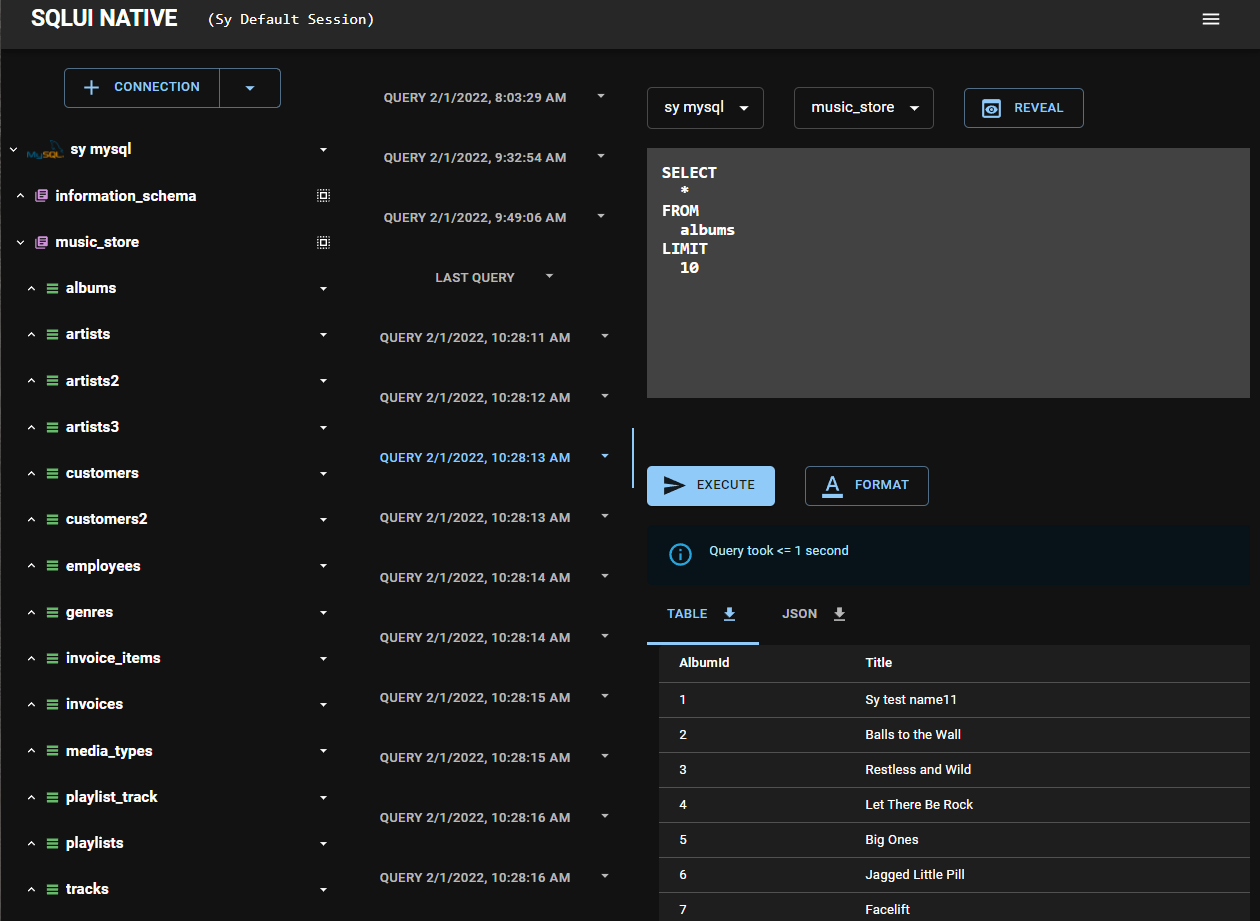
When there are more than 20 tabs, the query tabs wrap vertically.
Reordering Query Tabs
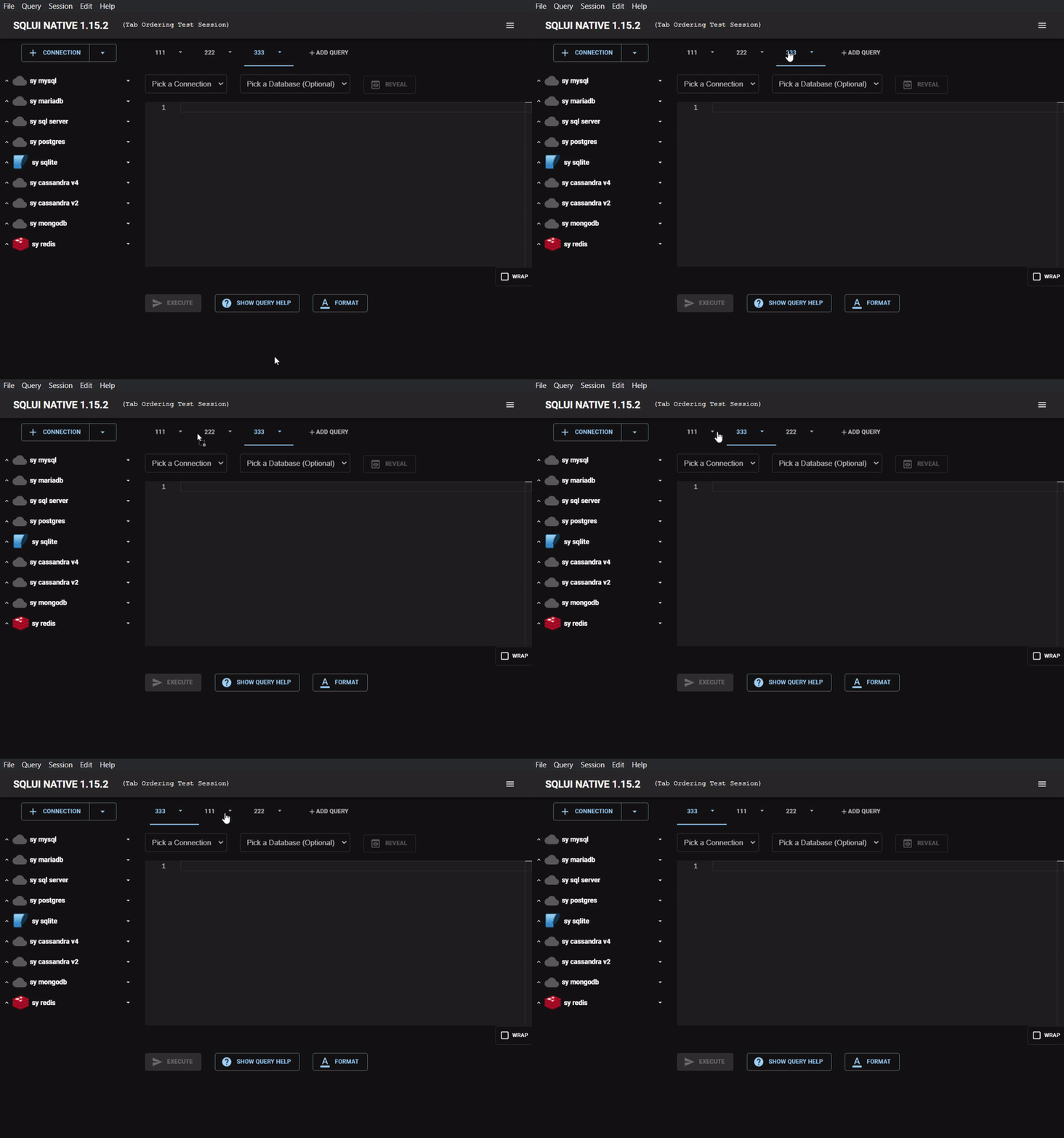
Drag and drop query tabs to reorder them.
Resizing the Sidebar
Drag the divider between the sidebar and the query editor to resize the sidebar.

Command Palette
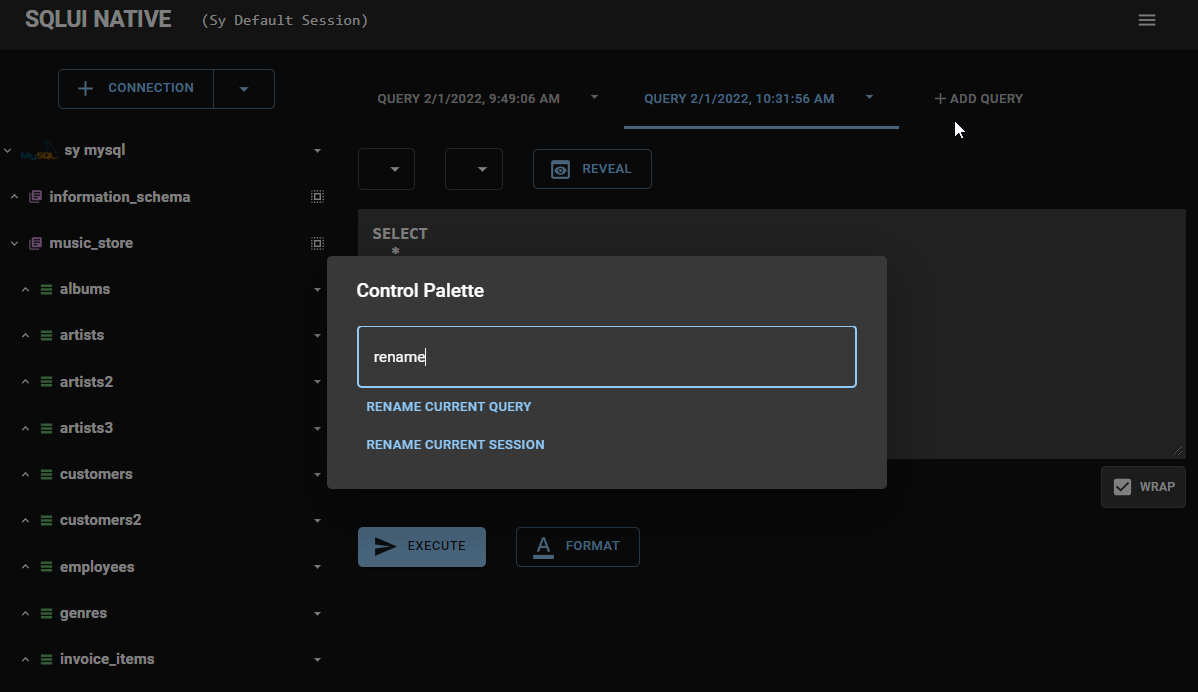
Open the command palette with Cmd+P (Mac) or Ctrl+P (Windows/Linux) to quickly access commands.
Connection Hints
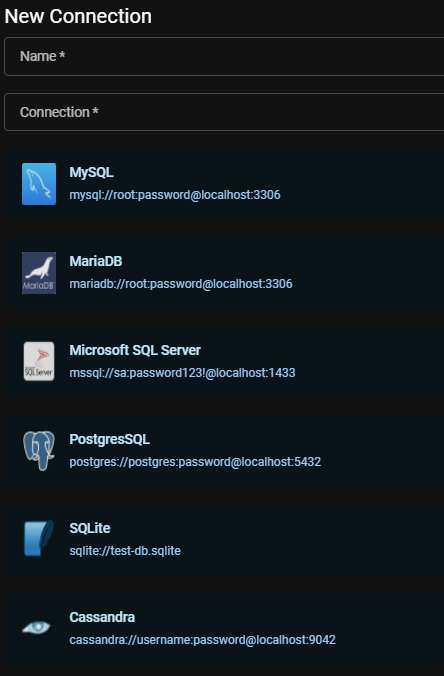
Click Show Connection Hints on the New/Edit Connection page to see sample URI connection strings. Click any sample to use it as a starting point.
Settings
Access settings via the menu icon in the top right corner to configure editor preferences, color theme, and more.


SQLite-based Storage
Application data (connections, queries, sessions, settings, caches) is stored in a single SQLite database file (sqlui-native-storage.db) in the app data directory. This makes import/export simpler compared to the previous approach of many individual JSON files.
On first launch after upgrading, existing JSON storage files are automatically migrated into the SQLite database. The original JSON files are moved to a backup/ subdirectory (not deleted) so you can restore them if needed by moving them back to the parent directory.
Data Migration
Use Data Migration (top right hamburger menu) to move data between database engines, from either an existing connection or raw JSON data.


Bookmarks
The system allows you to bookmark connections and queries. Bookmarked items can be applied to any workspace.
Adding a Bookmark
Right-click a connection name or query tab and choose Add to Bookmark. Enter a name and click Save.


Opening a Bookmark
Open the hamburger menu (top right) > Bookmarks, then click a bookmark name to apply it.


Recycle Bin
Deleted connections and closed queries are moved to the recycle bin. Access it via the hamburger menu (top right) > Recycle Bin.
- Restore — recover individual items
- Delete — permanently remove individual items
- Empty Trash — permanently remove all items


Hard Delete
To bypass the recycle bin and permanently delete items immediately, set Delete Mode to hard delete in Settings.

Relationship Chart (FK Visualization)
Visualize foreign key relationships for relational databases (MySQL, MariaDB, MSSQL, PostgreSQL, SQLite). Right-click a table name and choose Show Relationships.
- Diagram view — interactive chart with tables as nodes and FK edges (zoom, pan, drag)
- Table view — sortable FK list
- Toggle horizontal/vertical layout, expand/collapse edge labels, export as PNG
Code Snippets
Generate ready-to-use connection code snippets for your database in Java, JavaScript, and Python. Access code snippets from the query script dropdown for any connection.
Record Pages
New Record Page
- Click
New Recordbelow the query editor - Select the Connection, Database, and Table
- Fill in the form fields
- Click
Generate Scriptto generate the INSERT query


Record Details / Edit Record Page
Click any row in the query results to open the Record Detail page. Toggle edit mode to modify fields, then click Generate Script to generate the UPDATE query.
Contributing
Dev Notes
See CONTRIBUTING.md for how to run the app locally and contribute.
Testing & Coverage
- Unit tests:
npm run test-ci(Vitest; config invitest.config.ts). - Integration tests (Docker required):
npm run test-integration(config invitest.integration.config.ts). - Coverage gates run in CI on every PR — see the Code Coverage section in CONTRIBUTING.md for the JS/TS (Vitest + V8) and Rust (
cargo-llvm-cov) configurations.
Adding a New Database Adapter
Want to add support for a new database engine? The project uses an adapter pattern where each database engine implements a standard interface (IDataAdapter). A starter template is provided at src/common/adapters/_SampleDataAdapter_/.
The high-level steps are:
- Add a new dialect to
typings/index.ts - Copy the sample adapter template and implement the adapter class (
index.ts) and script generator (scripts.ts) - Register your adapter in
DataAdapterFactory.tsandDataScriptFactory.ts - Add a dialect icon PNG in your adapter directory and import it in
scripts.ts - Add snapshot tests in
DataScriptFactory.spec.ts
For the full step-by-step guide with code examples, see the Adding new adapters section in CONTRIBUTING.md.
Roadmap
- Query autocomplete
- Auto-update
- Microsoft Store distribution
- AWS Redshift adapter
Troubleshooting
Mac Apple Silicon (M-Series) - “App is damaged” Error
On macOS 26+ with Apple Silicon (M1/M2/M3/M4), you may see the following error when attempting to open the app:
“sqlui-native.app” is damaged and can’t be opened. You should move it to the Trash.
This is caused by macOS quarantine attributes applied to unsigned apps. To fix this, open Terminal and run:
xattr -cr /Applications/sqlui-native.app
After running the command, you should be able to open sqlui-native normally.
Limitations
SQLite Limitations
SQLite does not support multiple statements in a single query. Use bulk insert syntax instead:
INSERT INTO
  art (Name)
VALUES
  ('Queen'),
  ('Kiss'),
  ('Spyro Gyra')
CockroachDB Limitations
CockroachDB connects via the PostgreSQL driver. Replace ?sslmode=require with ?sslmode=no-verify in the connection string:
postgres://demo:demo26472@127.0.0.1:26257/movr?sslmode=no-verify
Cassandra Limitations
Cassandra keyspaces map to sqlui-native databases, and column families map to tables.
CosmosDB with Cassandra API Connection String
Go to Connection String in the Azure CosmosDB Cassandra resource:

Sample Connection String
cassandra://USERNAME:PRIMARY PASSWORD@CONTACT POINT:PORT
MongoDB Limitations
MongoDB collections map to sqlui-native tables. The schema is inferred by scanning the first 5 documents.
Create a New MongoDB Database
db.createDatabase("new-database-name");
Redis Limitations
Not all keys are displayed due to potentially large key sets. For SSL connections, use the rediss:// scheme.
Azure Redis Cache Connection String
Go to Access Keys in the Azure Redis Cache resource:

Format: rediss://<username>:<password>@<host>:<port>
The username field must be a non-empty string (any value works):
rediss://azure:Primary_Or_Secondary_Access_Key@syredis1.redis.cache.windows.net:6380
Azure CosmosDB Limitations
CosmosDB databases map to sqlui-native databases, and containers map to tables. The schema is inferred by scanning the first 5 items. Tested with CosmosDB Core SQL API.
CosmosDB Core SQL API Connection String
Open your CosmosDB resource > Keys, then copy the PRIMARY CONNECTION STRING or SECONDARY CONNECTION STRING:


Sample Connection String
cosmosdb://<your_primary_or_secondary_connection_string>
Salesforce (SFDC) Limitations
Salesforce SObjects are mapped to sqlui-native Tables, and Salesforce Fields are mapped to sqlui-native Columns. Each connection represents a single Salesforce Org (mapped as a single database).
The adapter supports three query modes:
- SOQL (read-only) – Queries starting with
SELECTare executed as SOQL - SOSL (read-only search) – Queries starting with
FINDare executed as SOSL - JS API (mutations) – Queries containing
conn.are executed as JavaScript for create, update, delete, and upsert operations
Setting up connection string
- Sign up for a free Developer Org at developer.salesforce.com/signup
- Get your Security Token: Avatar > Settings > My Personal Information > Reset My Security Token
- Use JSON format for the connection string:
sfdc://{"username":"you@yourcompany.dev","password":"your_password","securityToken":"your_token","loginUrl":"login.salesforce.com"}
loginUrldefaults tologin.salesforce.comif omitted. Usetest.salesforce.comfor sandbox orgs.securityTokencan be omitted if your IP is whitelisted.
OAuth2 Client Credentials Flow
For orgs using Connected Apps, you can authenticate without a username/password by providing clientId and clientSecret:
sfdc://{"clientId":"your_connected_app_client_id","clientSecret":"your_connected_app_client_secret","loginUrl":"your-org.my.salesforce.com"}
Sessions are automatically refreshed when they expire — no manual reconnection needed.
Sample queries
-- SOQL: Select accounts
SELECT Id, Name, Industry FROM Account LIMIT 10

-- SOSL: Search across objects
FIND {keyword} IN ALL FIELDS RETURNING Account(Id, Name), Contact(Id, Name) LIMIT 20
// JS API: Insert a record
conn.sobject("Account").create({ Name: "New Account", Industry: "Technology" });

// JS API: Update a record
conn.sobject("Account").update({ Id: "001xxx", Name: "Updated Name" });

// JS API: Delete a record
conn.sobject("Account").destroy("001xxx");
Azure Table Storage Limitations
Azure Table Storage tables map to sqlui-native tables. The schema is inferred by scanning the first 5 items.
Setting Up Connection String


aztable://<your_connection_string>
REST API Features
- Dual syntax: auto-detects
curlandfetch()input (paste from Chrome DevTools). variable interpolation with 4-layer priority (folder > collection > global), plus dynamic variables (, ``).- Warns on unresolved `` placeholders after variable resolution.
- Supports proxy (
-x/--proxy), timeouts (--max-time,--connect-timeout), basic auth (-u), SSL bypass (-k), redirects (-L), and file uploads (-F). - Code snippet generation for JavaScript (fetch), Python (requests), and Java (HttpClient).
- Import from HAR files and Postman Collection v2.1; export as Postman Collection.
- Response viewer with tabs for Body, Headers, Cookies, Timing, and Raw JSON download.
REST API Limitations
- Requires
curlinstalled on the system (pre-installed on macOS and most Linux distributions). - Uses curl/fetch syntax in the editor — not a visual form builder like Postman.
- No persistent connection — each request is a standalone
curlsubprocess. - `` variable interpolation is case-sensitive.
- Connection string format:
rest://{"HOST":"https://httpbin.org"}(also accepts legacyrestapi://). - Folder nesting is limited to 2 levels (Connection → Folder → Request), matching the database/table model.